 Docs
DocsSchedules (CRON)
Run any copy, move, sync, bisync, delete or purge on a schedule, even with the app closed.
Schedules are useful when you want to run rclone operations while you're away or at certain times.
You can let them run and check their logs at any time, live or after they're done.
They use the OS's native scheduler and can run even while the app is closed.
Creating a scheduled operation
Choose an action
A schedule is an operation (copy, move, sync etc) plus a time.
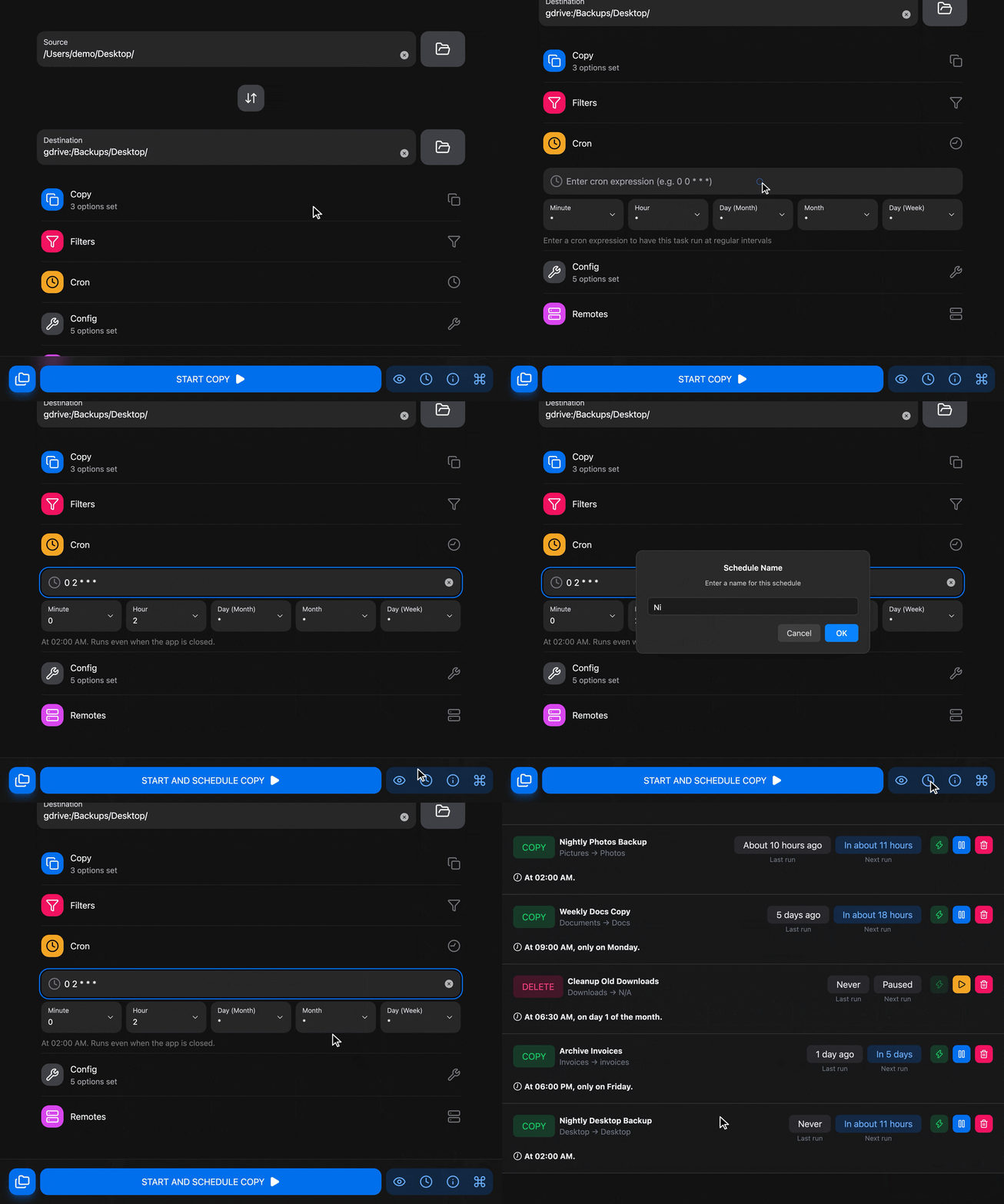
Look for the desired action in Rclone UI, set its paths and options and then open the Cron section.
Set a time
The time is a cron expression.
You can type it in directly or build it with the time dropdowns, which offer every value and the common intervals. As you type, Rclone UI spells the expression out in plain words like "At 02:00 AM, every day".
Schedule it
There's 2 ways to schedule a task:
- The clock icon in the bottom bar creates the schedule without running the operation now.
- The start button, which runs the operation immediately and also creates the schedule.
Viewing schedules
Open the toolbar and type schedules (cron works too), or pick "Schedules" from the tray menu.
First time you'll see an empty list, but once you start creating schedules you'll see a list like this:
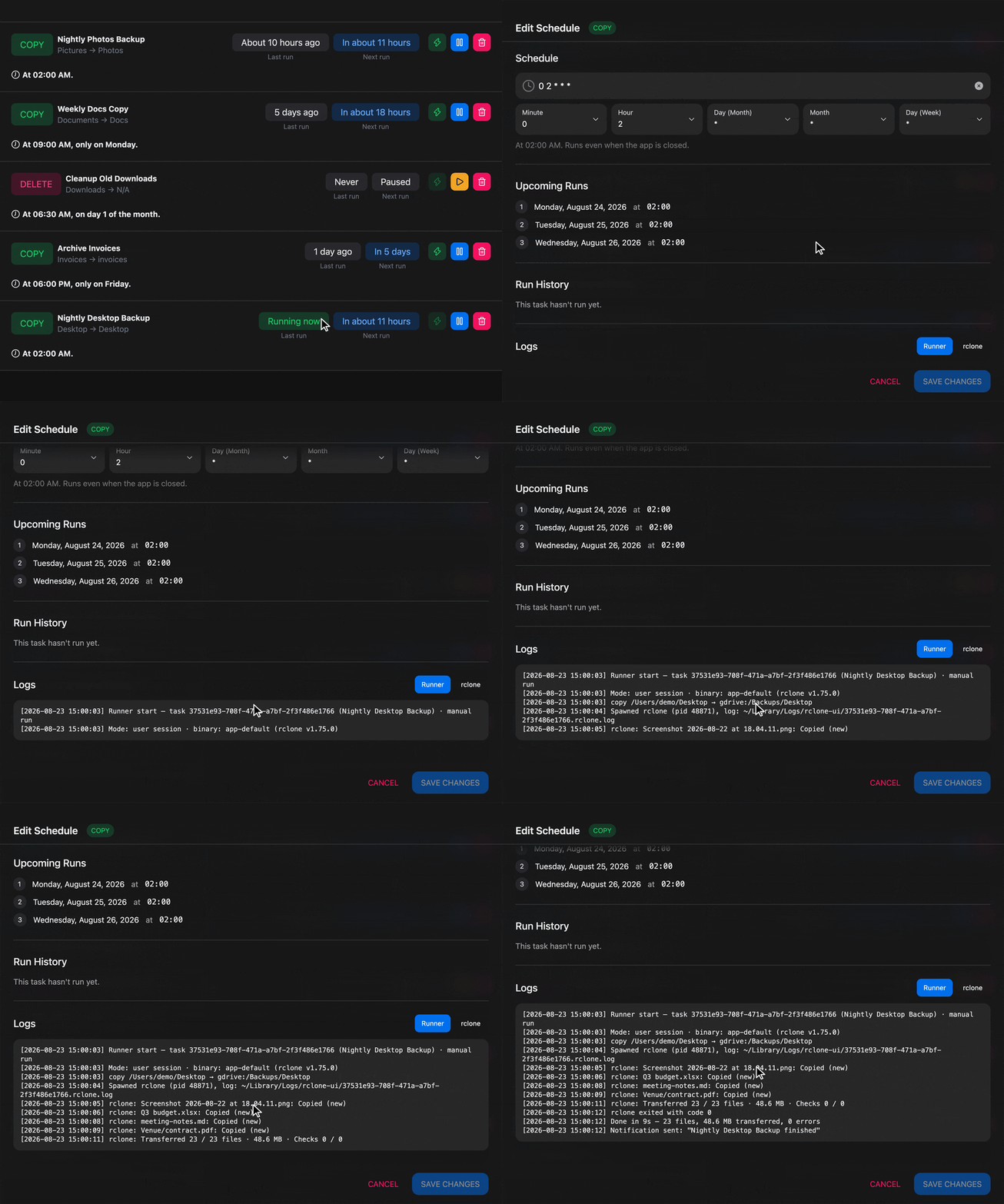
Each row names the job and shows some quick info, the buttons on the right side gives you the option to run the schedule now, pause/unpause it or remove it completely.
A row will show a red text line if the schedule encountered an issue. Sometimes the issue could be rclone-related, app, or OS related (like "Not scheduled", which means the job could not be registered with the operating system).
You can see if there's more info about the error by tapping the row. In there you'll also see the run history, future runs, and logs.
Logs has 2 sections: one for the runner (the scheduler) and one for rclone itself. While a run is in progress the logs fill in live.
Editing schedules
The same drawer lets you change:
- "Enabled", "Name", and the "Schedule" (the cron editor again).
- "Config" and "Binary": which rclone configuration file and which rclone binary the run uses. A run needs the configuration that contains its remotes; if that configuration is encrypted, its password has to be saved in Settings, Config, or the run cannot read it.
- "Run mode". "User" runs the task inside your session, with your keychain, your mounted drives and the folders macOS lets you access. "System" runs it even when nobody is logged in, but without those, which matters for remotes whose credentials live in the keychain and for sources under protected folders. Tasks in System mode carry a SYSTEM chip on their card.
- "Verbose" logs every transferred file to the rclone log, useful for checking what a run did, at the cost of longer logs.
- "Max run time", in hours. A run still going after that is stopped.
The source, destination and options are fixed once created. To change them, make a new schedule from an operation window and delete the old one.
How is this guide?