 Docs
DocsCustom Build
How to use a custom rclone binary in Rclone UI
Rclone UI works with any rclone binary, which includes custom builds and community forks.
Reasons to use a custom build include additional backends (some forks add providers not yet available in the official rclone release, e.g. RealDebrid or enhanced S3 metadata), experimental features that have not landed upstream yet, a bug fix that has not been merged yet, or your own modifications to rclone.
There are two ways to do it. The quick one is to pick the binary in Rclone UI's settings. The other is to replace (or alias) the rclone on your PATH, which is what the per-platform sections below describe.
Updated method (easier)
Rclone UI now supports setting a custom binary to use.
In the Binary section in Settings, you can configure the path and a few other preferences for the running rclone process.
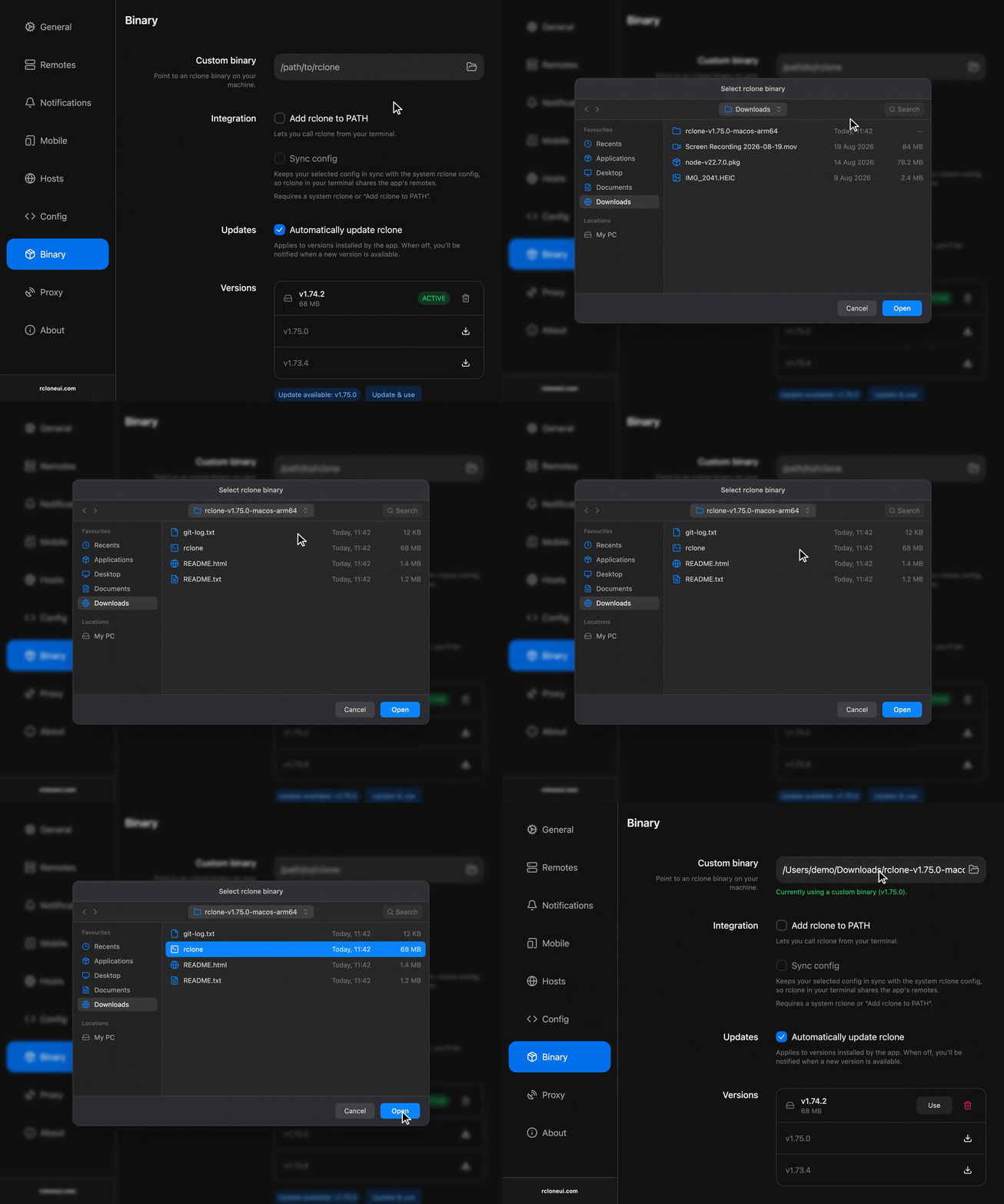
You can add multiple binaries and switch between them when needed. This functionality can also be used to switch between official rclone versions (for testing differences in behavior, for example).
By default, nothing on your PATH gets changed. If you want the same custom binary in your terminal too you can toggle that option and restart your terminal.
This feature makes managing the custom binary much easier than the methods below.
macOS
Rclone UI looks for rclone on your PATH. Either rename your custom binary to rclone and place it in a directory on your PATH, or create a shell alias.
Option 1: replace the binary
Move the custom binary into a directory on your PATH under the name rclone and make it executable:
mv /path/to/custom-rclone /usr/local/bin/rclone
chmod +x /usr/local/bin/rclone
Option 2: shell alias
Add this to your ~/.zshrc (or ~/.bashrc):
alias rclone="/path/to/custom-rclone"Then reload your shell:
source ~/.zshrcOption 3: symlink
Leave the binary where it is and point a link named rclone at it:
ln -sf /path/to/custom-rclone /usr/local/bin/rcloneWindows
Option 1: replace the binary
Locate where rclone.exe is installed (commonly C:\Program Files\rclone\ or wherever you extracted it) and replace it with your custom build:
- Rename your custom binary to
rclone.exe. - Copy it to the directory where rclone is installed, replacing the existing file.
Option 2: update your PATH
- Place your custom
rclone.exein a folder of your choice (e.g.C:\Tools\custom-rclone\). - Open Settings > System > About > Advanced system settings > Environment Variables.
- Edit the
Pathvariable and add your custom folder above the default rclone entry so it takes priority.
Linux
The process is the same as macOS — Rclone UI finds rclone via your PATH.
Option 1: replace the binary
sudo mv /path/to/custom-rclone /usr/local/bin/rclone
sudo chmod +x /usr/local/bin/rclone
Option 2: shell alias
Add this to your ~/.bashrc (or ~/.zshrc):
alias rclone="/path/to/custom-rclone"Then reload:
source ~/.bashrcOption 3: symlink
sudo ln -sf /path/to/custom-rclone /usr/local/bin/rcloneVerify it works
After swapping the binary, confirm that the right version is picked up:
rclone versionYou should see the version string from your custom build. Then open Rclone UI — it will use whichever rclone binary is resolved on your PATH.
Community custom builds
Some custom rclone builds worth knowing about:
| Project | Description |
|---|---|
| itsToggle/rclone_RD | Adds a RealDebrid backend that mounts your torrent library as a virtual drive, with folder sorting, automatic link re-activation and torrent deletion. |
| debridmediamanager/rclone_RD | Maintained fork of rclone_RD, kept up to date for use with Debrid Media Manager. |
| philamp/rclone_jelly | Fork of rclone_RD with an externally controlled cache layer, rar2fs/ffprobe index caching and improved RealDebrid API rate-limit handling, designed for Jellyfin via JellyGrail. |
| nickexported/rclone | Adds the ability to copy per-object metadata and ACLs between different S3 endpoints, which is useful for migrations. |
How is this guide?