 Docs
DocsBisync
Two-way sync that keeps two locations in step with each other.
Bisync keeps two locations in step with each other.
Where Sync goes one way, Bisync carries changes made on either side to the other: a file added on the laptop appears in the remote folder, a file deleted in the remote folder disappears from the laptop. It is the operation for files you work on from two places.
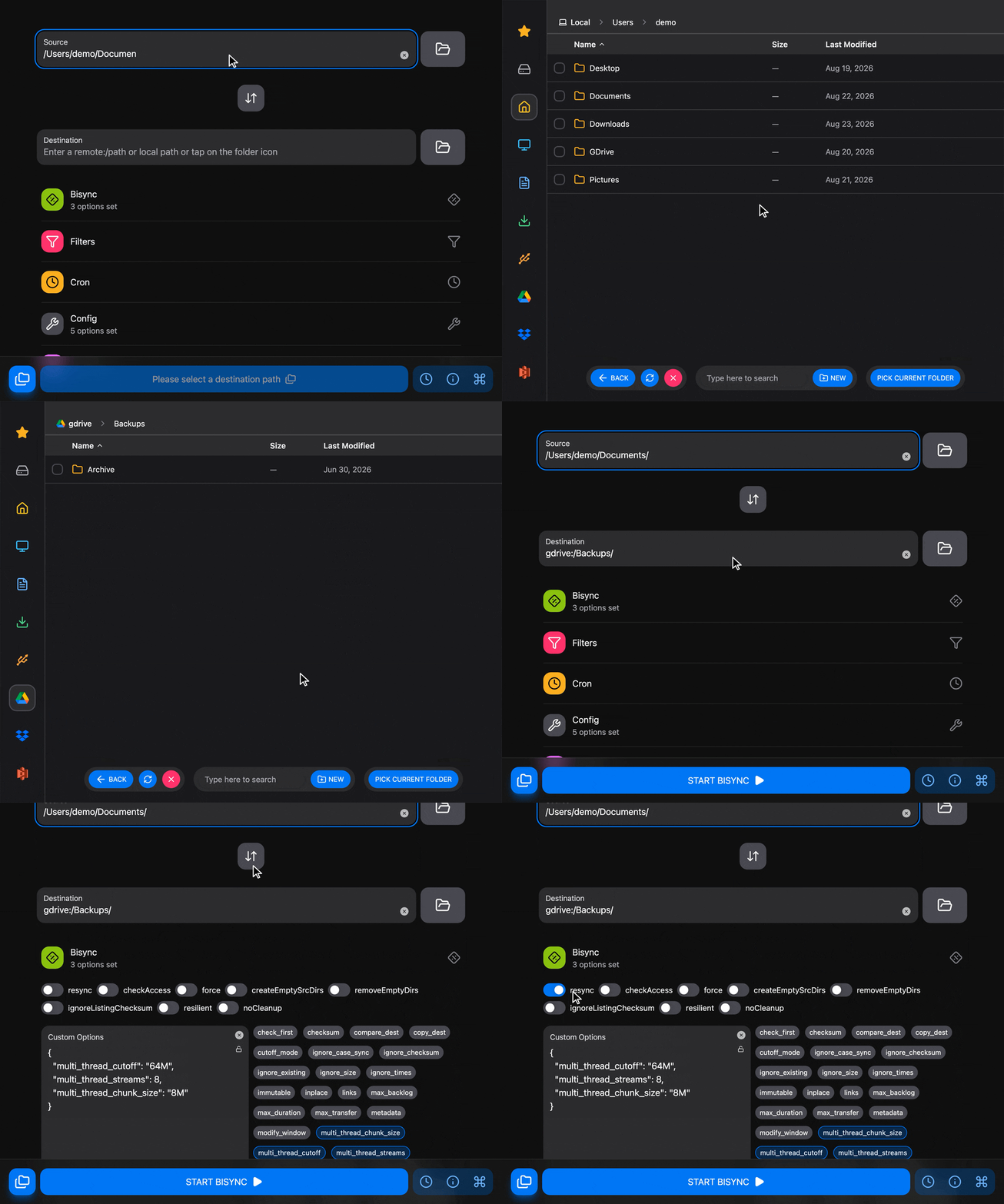
Setup
Choose the paths
Open the toolbar and type bisync. Two paths, one on each side. rclone calls them Path1 and Path2; the window labels them Source and Destination, but with Bisync neither side has priority over the other. Type them or use the folder picker.
Hover any option to see its explanation. The rules for conflicts, when the same file changed on both sides, are on rclone bisync.
First run?
Bisync remembers the state of both sides after each run and compares the next run against it, which is how it tells a file you deleted from a file that was never there. That memory is why the first run is special.
The first run must have resync on. Turn it off afterwards: a run with resync on does not carry changes across, it makes both sides identical again from scratch.
Start
Press "START BISYNC" and watch the job in Transfers. The first run is the slow one, since it transfers everything that is missing on either side but later runs only carry the changes.
Options reference
At the top of the window you'll see eight switches:
| Switch | What it does |
|---|---|
resync | Builds the memory of both sides from scratch and makes them identical. Needed for the first run, and again after an interrupted one. |
checkAccess | Looks for a marker file on both sides before doing anything, as a check that both are really reachable and not, say, an empty folder because a drive is unmounted. |
force | Carries on even when the number of deletions would normally stop the run as suspicious. |
createEmptySrcDirs | Carries the creation and deletion of empty folders across too. |
removeEmptyDirs | Removes every folder left empty at the end of the run. |
ignoreListingChecksum | Leaves checksums out of the listings, which is faster on remotes where hashes are slow to fetch. |
resilient | Lets a later run recover from some errors instead of requiring a new resync. |
noCleanup | Keeps the working files, for troubleshooting. |
Scheduling bisync
Bisync is meant to run regularly. Set a cron expression in the Cron section and use the clock button in the bottom right corner to schedule without running now.
he switches are not saved into the schedule (a scheduled run with resync on would start over every time), so do the first resync by hand before you schedule.
Troubleshooting
- A run stops with an error about a missing listing or an aborted previous run: the memory of the two sides is out of date. The solution is to run it once more with
resyncon. - A run stops because too many files would be deleted: check that both sides are complete and reachable (an unmounted drive looks like an emptied folder). If the deletions are intended, run it once with
force.
How is this guide?