 Docs
DocsSlack
Post Rclone UI's notifications to a Slack channel through an incoming webhook.
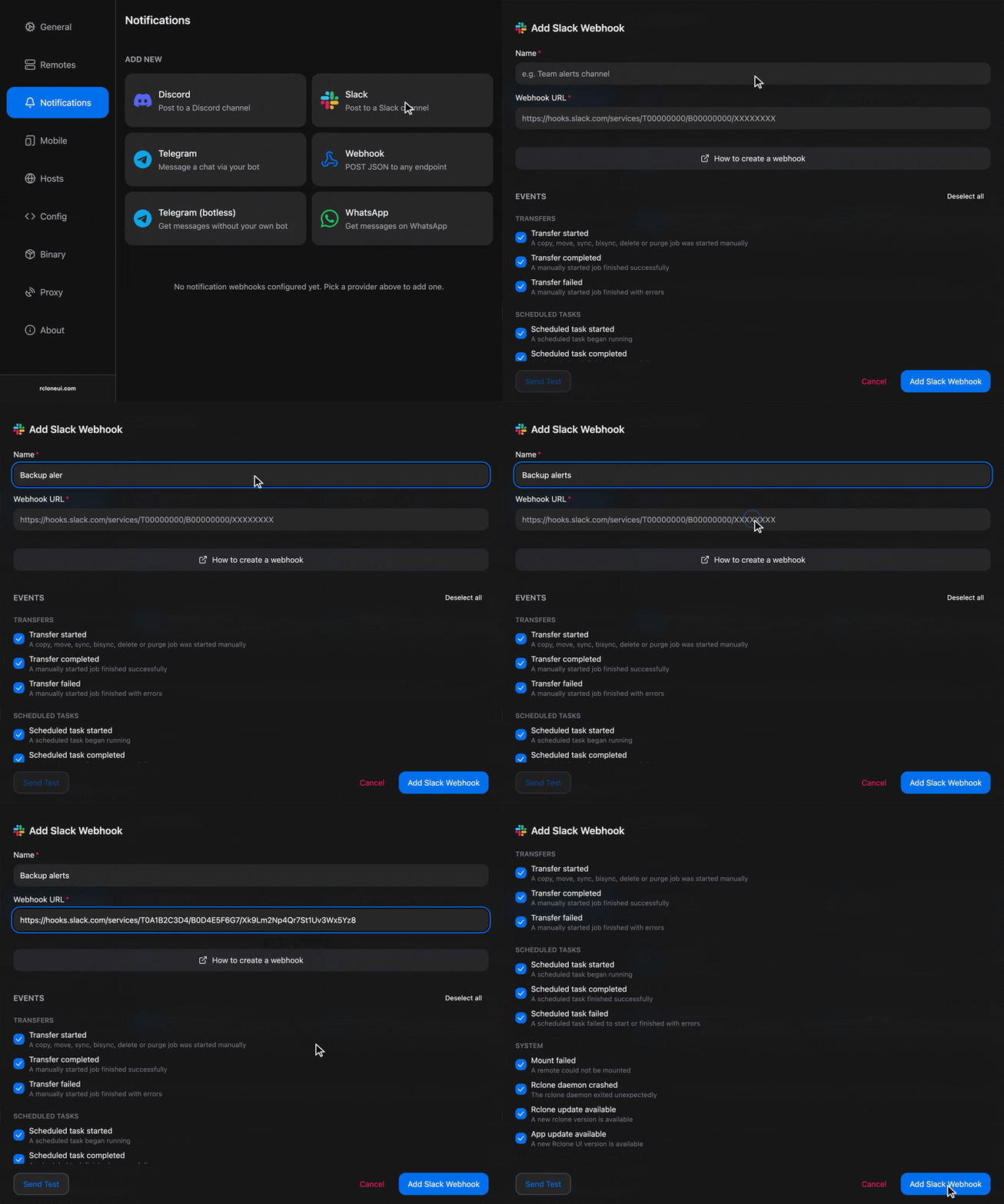
To get a webhook from your app and use it for notifications, check out steps outlined below.
Setup
Create the incoming webhook
In Slack, incoming webhooks belong to an app: create an app in your workspace, or open one you already have, turn on Incoming Webhooks, and add a webhook for the channel that should receive the messages.
Keep the URL to yourself, since anyone who has it can post to the channel. A workspace whose administrators restrict app installation may need their approval first.
Add the target
In Rclone UI, open the toolbar, type settings and open the Notifications section. Under "Add New", pick Slack. Give the target a name and paste the webhook URL into "Webhook URL".
Choose the events
Tick the events this target should receive. To see all the supported events, check the Events section.
Test and save
Press "Send Test". A test message appears in the channel within a moment. Then "Add".
Troubleshooting
- "Send Test" is refused with "This doesn't look like a Slack webhook URL": the pasted text is not the webhook's URL. Copy it again from the app's Incoming Webhooks page.
- The test succeeds but nothing appears in the channel: the webhook posts to the channel chosen when it was added, not to the one you are looking at. Add a webhook for the right channel.
- Messages stop and the card shows "Last delivery failed": the webhook was removed, the app was uninstalled from the workspace, or the channel was archived. Add a new webhook and paste its URL with "Edit".
How is this guide?