 Docs
DocsRename
Rename many files at once, with find and replace, numbering and case changes.
Batch Rename renames the files you selected in the Commander in one operation, on the remote itself, so nothing is downloaded or uploaded.
It covers the cases that come up with photo sets and exports: replacing part of a name, adding a prefix or suffix, numbering, and changing case.
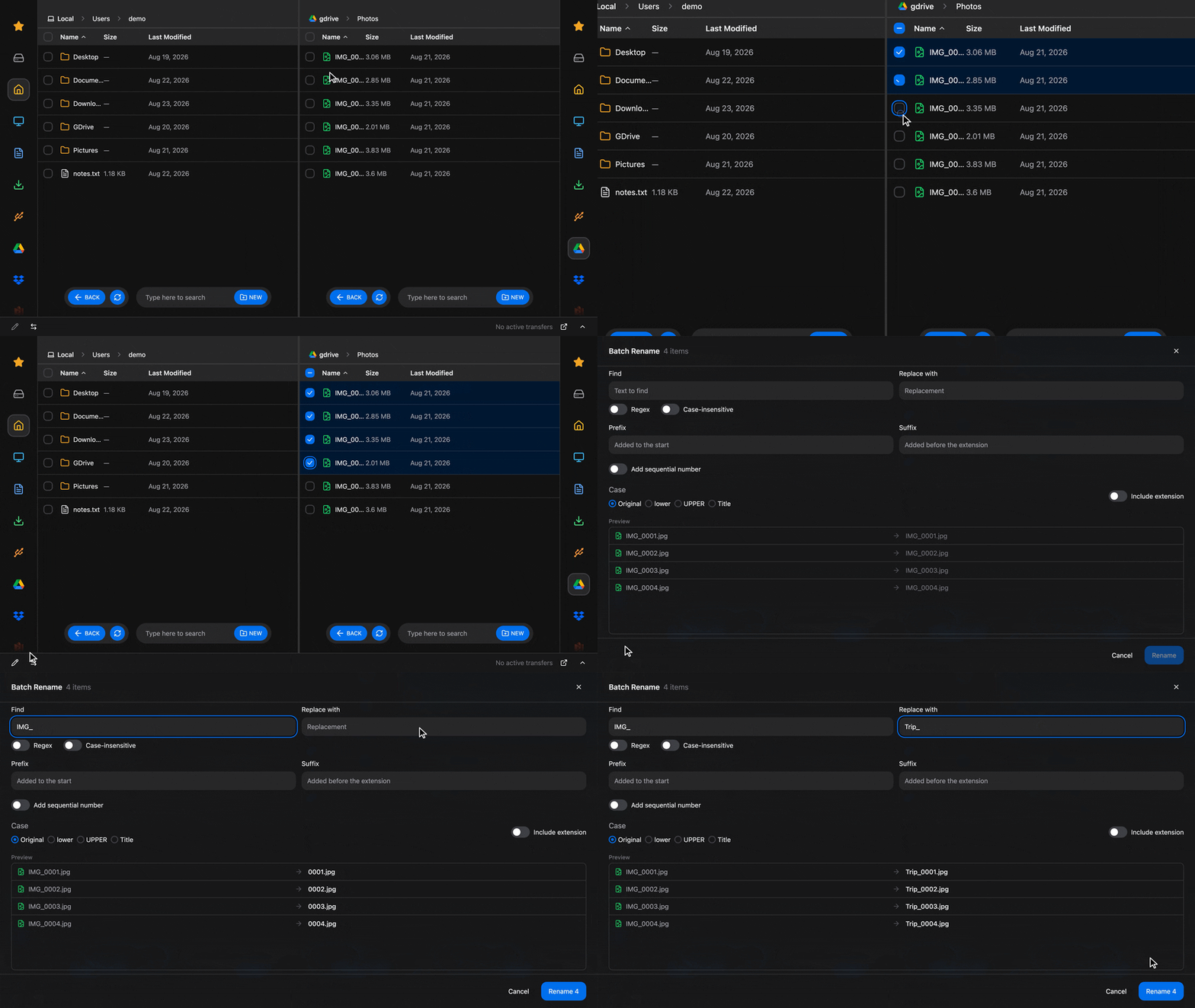
Workflow
Select the files
Open the Commander and go to the folder, then tick the items you want to rename.
Tip: you can select everything in the current folder by hovering the header (before the Name column)
Once the selection is complete, tap the Batch Rename (pencil button) on the bottom left corner of the Commander window.
Set the rules
The renamer shows how many items are selected, the rules, and a preview.
The rules apply to every file in this order: find and replace, then case, then prefix, suffix and number. The extension is set aside first and put back at the end, so the rules only see the name. "Include extension" makes them apply to the full name instead.
The preview updates as you type, with the current and the new name of every file. A rule that produces an empty name, two identical names, or a name that clashes with another selected file is marked on that row. An invalid regular expression is reported at the top.
Apply
The files are renamed on the remote, both panels refresh, and the selection is cleared.
If a rename fails, because a file was moved in the meantime for instance, the drawer stays open and lists the files that failed, so you can adjust and try again.
Learn more
To better understand how the Commander works, check out the documentation.
How is this guide?