 Docs
DocsCompare
Check whether two folders match, by checksum and name.
Compare checks two folders against each other and reports, file by file, whether they match. Use it to confirm that a backup is complete, or to see what changed since it was made.
It uses the checksums the remotes provide, so it tells a file that merely has the same name and size from a file that is the same.
Workflow
Set it up
In the Commander, navigate the left panel to one folder and the right panel to the other. For example a folder on your computer on the left and its backup on a remote on the right.
Compare works on the two folders currently shown, whatever is selected, so there is nothing to tick.
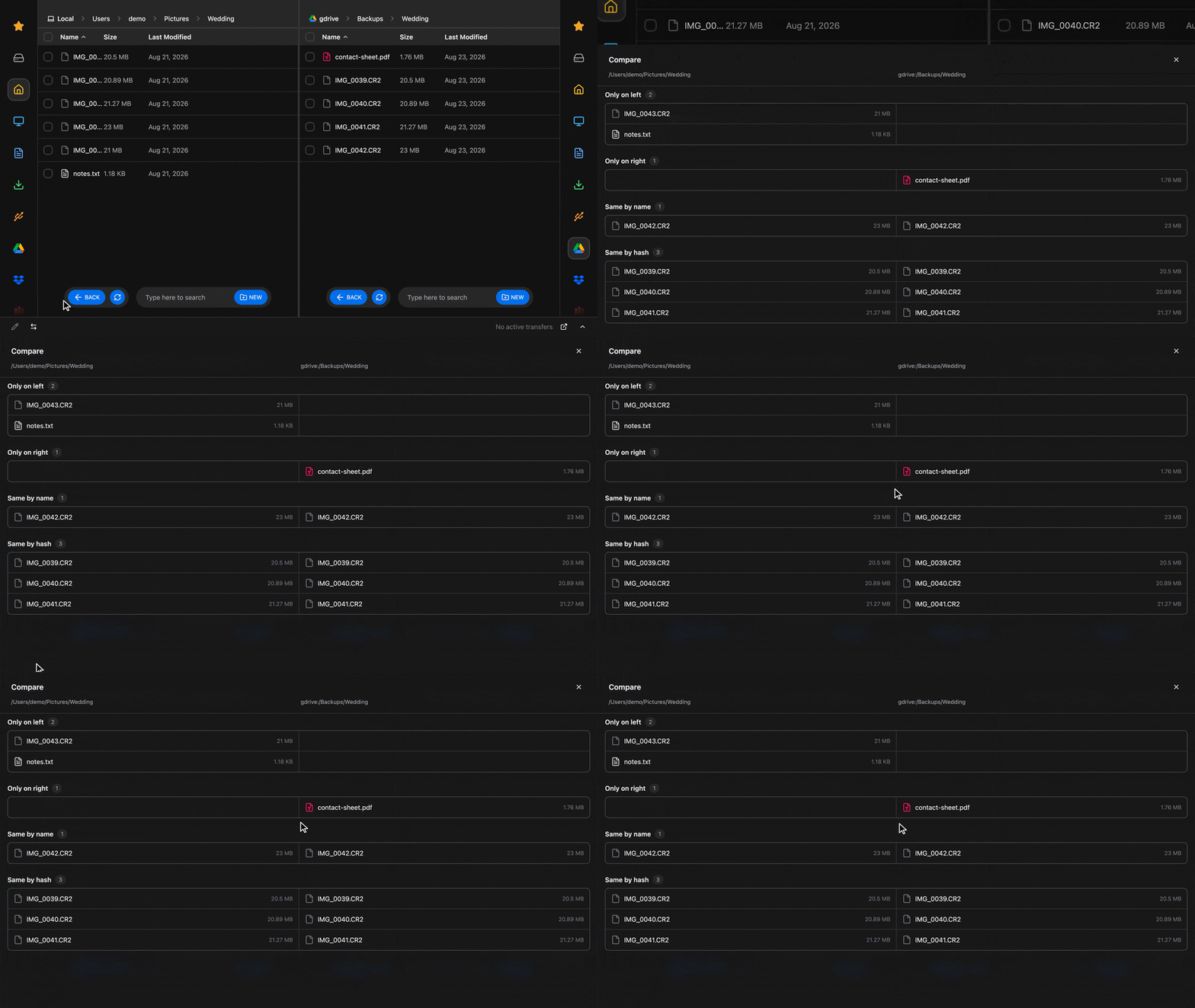
When ready, press the arrows icon in the bottom left to show the comparison.
Read the result
Compare lists both folders and sorts every item into four groups:
| Group | Meaning |
|---|---|
| Only on left | Present in the left folder only |
| Only on right | Present in the right folder only |
| Same by name | On both sides, but the checksums differ or one side has none |
| Same by hash | On both sides and identical, hash for hash |
A complete backup has every file under "Same by hash".
Finding duplicates
"Same by hash" is also the quickest way to spot duplicates across two folders: files with identical content, whatever their names.
Compare is read-only and never copies or deletes anything. To act on what it finds, close the drawer, tick the files in the Commander, and delete them.
Good to know
- Some remotes provide no hash for some files. Google Drive has none for Google Docs, and a local disk computes hashes by reading each file, which takes time on large folders. Files without a hash land under "Same by name" even when they are identical.
- If the two remotes do not share a hast type (Google Drive with OneDrive, for example), nothing can land under "Same by hash".
Learn more
To understand how the Commander works, check out the documentation.
How is this guide?